
In this article you will learn:
- What the Hosting WP service includes
- What are the conditions for setting up the Hosting WP service
- How to activate Hosting WP:
- Common problems
- Frequently asked questions
Hosting WP
Hosting WP is a new service offering maximum support for the WordPress content management system (CMS). This support includes:
- Pre-installed WordPress when the service is set up
- Optimized server with LiteSpeed, Redis, supported PHP, and MariaDB
- DDoS protection specialized for WordPress
- Regular automatic backups
Among other things, Hosting WP offers the following for selected plans:
- Unlimited space for website files and databases
- Email space with an unlimited number of mailboxes and e-mail aliases
You can find the full service description on the Hosting WP product page.
Service plans
We currently offer the Hosting WP service in three plans:
- NoLimit WP. Hosting NoLimit WP ⧉ is the basic plan tailored for small and medium-sized corporate websites with email support.
- Business WP. Hosting Business WP ⧉ is a plan with maximum performance and mail storage for large companies.
- LowCost WP. Hosting LowCost WP ⧉ is for less demanding users who need small, simple websites and no e-mails.
A complete overview of the parameters of each plan can be found on the Hosting WP product page ⧉.
Hosting WP order conditions
You can set up Hosting WP for any 2nd- or 3rd-level domain, including domains registered with another provider.
Before creating a new order, make sure that:
- You have the domain in your customer account for which you are ordering Hosting WP. Hosting WP can also be set up by an authorized user of the domain. You do not need to meet this condition if you register the domain elsewhere than at VEDOS.
- The domain for which you are ordering Webhosting is not used by another service (Webhosting, WebSite, Mailhosting, WMS).
Ordering Hosting WP
If you meet the conditions, order a new Hosting WP in the order form ⧉. It has five steps:
1. Basic information
In the first step, select a plan and enter the name (domain or subdomain without www) of the Hosting WP.
For the NoLimit WP and Business WP plans, you can activate add-on services to expand email mailboxes. The Business WP plan also offers the option of monthly billing.

In this step, you can also set the following:
- DNS settings. Here you can choose whether to automatically modify the domain DNS records in the WEDOS system so that it points the website, e-mails, or both to the newly created service.
- Discount coupon. By entering and applying a discount coupon, you reduce the price of the basic service, or add-on services. The system also locks the plan change. If you want to change the plan after applying a discount coupon, first deactivate the coupon.
The value of the discount coupon may vary depending on the selected plan.
2. Login/registration
In this step, log in or register to the customer administration.
If you are already logged in to the administration, the system will skip this step.
If you have problems logging in, follow the instructions in Administration – Login problems.
3. Billing information
Billing information may differ from the owner’s information. The system will send all billing and communication regarding service setup to the specified e-mail address (and only to that address).
You can later update the service billing information according to the instructions in Services – Billing information.
4. Operator
In this step, fill in the details of the operator of the Hosting WP service, with whom WEDOS, a.s. will conclude a processing agreement.
The operator of Hosting WP has no special authority over the service. In the event of a dispute, WEDOS, a.s. considers the customer whose account contains the service to be the owner, unless a court or another competent authority decides otherwise.
5. Completion
In this step, carefully check the entered details, especially the billing e-mail.
At the end of the order, you can choose payment through a Credit Account.
After you submit the order, the system will immediately send you an e-mail with payment details. Once payment has been successfully received, the service will be set up within 1 hour.
Activating the website in WordPress
To activate the new service, you need to:
DNS settings
To access Hosting WP, you need to set the appropriate DNS records for the domain. You can do this in the following ways:
- Automatically during the order. If you check the option set records on WEDOS DNS servers (do not change the domain DNS servers) in the order, the system will automatically point the domain to the newly created Hosting WP. This setting is effective only if the domain uses WEDOS DNS servers (NSSET).
- Automatically from the service detail. You can automatically point a domain using WEDOS DNS servers (NSSET) by clicking the Set domain in WDNS button according to the instructions below.
- Manually. If the domain does not use WEDOS DNS servers (NSSET), set the service DNS records manually. You can get the values from the table according to the instructions below.
To set the domain DNS in the service detail, follow these steps:
- Log in to the customer administration ⧉.
- In the navigation bar, select Hosting services Hosting WP.
- From the menu, select the service whose DNS you want to set or check.
- Find the Domain DNS settings table.
- Select automatic settings for e-mails, website, or both.
- Confirm with the Set records in WDNS button.
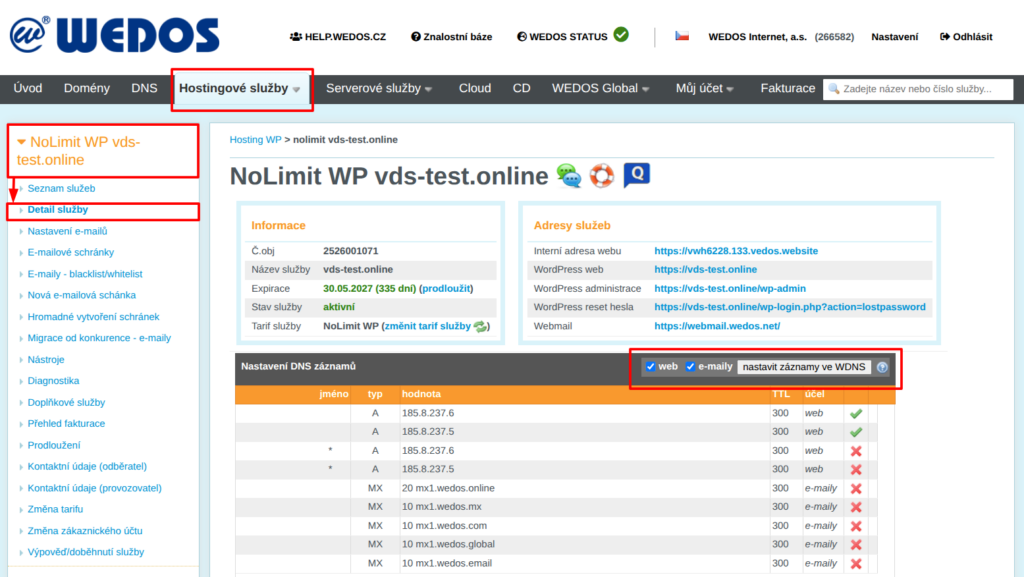
Logging in to the administration
The Hosting WP service includes a pre-installed WordPress content management system. This system is accessible under the administrator account:
- E-mail: the e-mail address of the customer account owner
- Username: the mailbox name of the customer account owner (without the @ sign and domain)
- Password: reset it according to the instructions in the service setup e-mail, or at
vasedomena.tld/wp-login.php?action=lostpassword, where replacevasedomena.tldwith your domain name.
Activating e-mails
E-mails are available in the NoLimit WP and Business WP plans. Activate them according to the following instructions:
- Make sure the domain has correctly configured MX records and an SPF record.
- Create new e-mail mailboxes.
- If you are moving from another service, transfer the e-mails to the new mailboxes.
- Check the mailboxes in WebMail, or connect them to an e-mail client using IMAP and SMTP.
Common problems
Common problems with ordering and launching the Hosting WP service include:
- The domain is in another customer account
- The domain name cannot be used
- E-mails stopped arriving
- The website/password reset link in the administration of the newly created WordPress does not work
The domain is in another customer account
Problem: The error This domain name cannot be used. – The domain is recorded in another customer account, you must be in the same account or set permissions. is displayed.
Cause: The domain whose name you want to set for the hosting service must be in the same customer account as this hosting service, or it must be an account that is the authorized user of the domain and DNS. This is a security measure against domain misuse.
Solution: Move the domain at least temporarily to your own customer account (using the service transfer method, or using the authorization password), or have your account set as an authorized user.
The domain name cannot be used
Problem: The error This domain name cannot be used. – The domain name is already used by another service (service).
Cause: A domain (or subdomain) name can be used at most once for most hosting services in our system. It does not matter whether these services are in one customer account – the limitation applies system-wide.
Solution: Rename the conflicting service (WebSite, Mailhosting, Webhosting, or alias) according to the instructions in the link, for example to stary.domena.tld, where replace domena.tld with the name of your domain. Remove the alias entirely.
E-mails stopped arriving
Problem: After the Hosting WP was set up, e-mails to an external service (Google Workspace, …) stopped arriving.
Cause: If you leave the option to make all DNS changes at WEDOS checked in the web hosting order, the system will overwrite both the A and AAAA records and the MX records.
Solution: Set the DNS records of type MX back to the original e-mail service provider.
For future orders where a similar problem may occur, uncheck the automatic DNS record setup for e-mail routing.
The WP password reset link does not work
Problem: An e-mail about the Hosting WP setup arrived, but after clicking the link to the administration, an error or a completely different page is displayed.
Cause: The most common cause is a problem with DNS record settings.
Solution: Check whether the DNS records are set correctly. If the domain does not use WEDOS DNS servers (NSSET), make sure the settings have propagated correctly at the actual provider. In some cases, this setting may take dozens of minutes, so wait and try opening the WP administration later.
Frequently asked questions
I entered the wrong domain name, what should I do?
If the service has not yet been set up, ask support via the form ⧉ to cancel the order. If the system has already set up the hosting, rename it.
Why does my VEDOS administration password not work for my WordPress?
The Hosting WP password is generated randomly by the system. For the first access, you must set your own password according to the instructions in the service setup e-mail, or in the chapter Logging in to the administration.