
This article covers the use of the WebMail ⧉ email client. If you want to manage email in the customer administration, follow the guide Emails – Manual.
The screenshots were taken in the new Elastic template. If you are using the older Larry template, follow the text instructions, or change the template at least temporarily according to the Template Update section.
In this article, you will learn:
- What WebMail is and how it works
- How to log in to WebMail
- How to perform basic tasks
- Common problems
- Frequently asked questions
VEDOS WebMail
WEDOS WebMail is an email client based on the RoundCube ⧉ software. You can access it directly from your browser at https://webmail.vedos.cz ⧉. You can log in to any mailbox hosted on our Webhosting, Mailhosting, WMS, or WebSite.
Logging in to WebMail
Log in to WebMail using the full email address of the mailbox you are accessing (for example, ladik@vedos.cz) and the corresponding password.

If you do not remember your password, follow the guide Emails – Change Password. Remember that a password change takes effect after about 10 – 30 minutes.
Basic tasks
In the WebMail client, you can conveniently perform common tasks, such as:
- Read and write emails with attachments
- Reply to and forward messages, send carbon copies and blind carbon copies
- Sort emails by subject, sender, date, and size
- Manage contacts in the address book

You can also follow these guides:
- Filter incoming mail
- Set an automatic text or HTML signature
- Search using various criteria
- Sort mail using folders
- Manage identities for aliases
Template update
With the WebMail update, among other things, the default template for newly created mailboxes changed to the modern, responsive Elastic template. For older mailboxes, we kept the original Larry template (or Classic), but the descriptions and images in the guides use the new template. If you need to switch between them, follow these steps:
- Click the Settings button.
- Select Preferences and then User Interface.
- In the Appearance section, choose the desired template.
- Click the Save button.


Common problems
Common WebMail problems include:
- Unable to log in to the mailbox
- Emails open and are marked as read
- Emails are not visible
- Opening WebMail on mobile resets the template on the PC
Login failed
Problem: The login attempt ends with an error message: Login failed. You are probably entering incorrect login credentials – username or password.
Cause: You are entering incomplete or incorrect login credentials, or you are trying to log in to a disabled service. Other common causes of this problem include deleted mailboxes and attempts to log in to the customer administration via email.
Solution: Check that:
- You are entering the full correct address as the login name. If you use an alias domain, try using the main webhosting domain. Do not enter the login credentials for the customer administration.
- You are entering the correct password. If you have changed it recently, wait 10 – 30 minutes and try logging in again.
- The hosting to which the mailbox belongs is active. Mailboxes of services disabled due to expiration are unavailable. You can quickly check the service status, for example, in the order overview ⧉ in the customer administration.
Automatic email preview
Problem: The email preview is displayed directly in the mailbox. When the previous email is deleted, the following email is marked as read.
Cause: By default, the new version of WebMail is set to a layout with preview and immediate marking of mail as read.
Solution: To turn off marking mail as read, go to Settings, Preferences, and Mailbox View. For Mark messages as read, choose never (or a time of your choice). Save the settings.
If you do not want to display mail previews at all (so you open mail by double-clicking), switch to the Larry template according to this guide and in Settings > Preferences > Mailbox View choose List (without preview) for Layout. Save the settings.
Messages are not displayed
Problem: Some or no emails are displayed in the mail client.
Cause: There are many causes of email display issues. Commonly, these are problematic settings of external mail clients, or the WebMail interface display.
- If you connect an external mail client (Outlook, Thunderbird, ...) with settings that delete messages on the server, WebMail cannot display messages downloaded in this way.
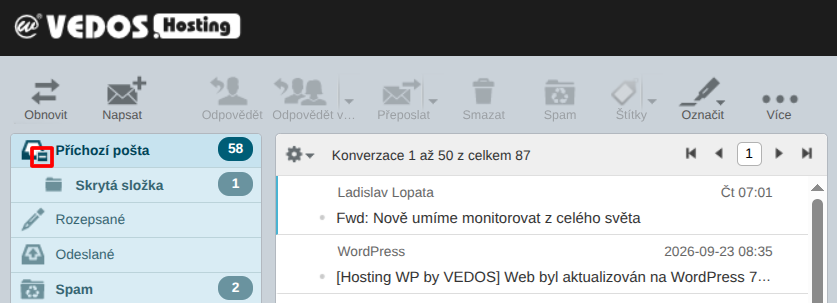
- If you forward or move messages to a folder, you may hide that folder and then you will not see the emails even though they arrive as usual.
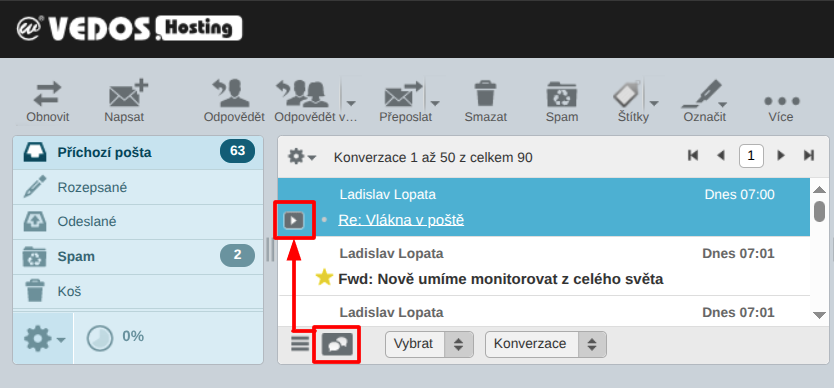
- If you use conversation grouping, WebMail moves the thread with the new message to the top of the inbox. However, it sorts messages from oldest to newest, so without expanding you only see the oldest (likely already read) message.
Solution: Proceed so as to eliminate the cause of the problematic behavior:
- In the case of messages being deleted by an external client, change its settings according to that client’s instructions. If you suspect that someone is downloading your mail this way without authorization, change the mailbox password.
- Show hidden folders again using the control near the icon.
- If you do not want emails grouped into conversations, switch to list view. In the Larry template, you will find the setting below the message list; in the Elastic template, in the Options menu (above the message list, item List appearance). If you want conversations with new messages to be expanded automatically, go to Settings, Preferences, and Mailbox View. For Expand conversations, choose only with unread messages. WebMail does not support sorting messages in conversations from newest to oldest.
Larry template reset by mobile Elastic
Problem: On my computer, I have the Larry template set with the List layout (without preview). Whenever I log in to WebMail from a mobile device, the layout switches to the default Widescreen (3 columns).
Cause: The mobile version uses the Elastic template, which does not use the Layout parameter.
Solution: We are currently working on a solution on our side. In the meantime, you can use this alternative procedure:
- In the customer administration, open the mailbox settings according to the guide Emails – Mailboxes.
- Add any alias to the mailbox. You do not need to change the password.
- Arrange for one mailbox name to be used for logging in from the PC and another (alias) for the mobile version. Both addresses use the same password.
Frequently asked questions
Why does my email client not work, but WebMail does?
Usually this is an error in the client’s basic settings, most often the server, port, or security. Another common obstacle is incorrectly configured security features, such as firewall and antivirus software. If WebMail works, the problem with mail functionality is probably not on our side.
How do I increase the capacity of an email mailbox?
You can increase the capacity in the customer administration. Follow this guide.