
This guide covers SFTP access for the Hosting WP service. If you use Webhosting, follow the guide Webhosting – FTP Accounts.
In this guide you will learn:
SFTP
SFTP access allows file management directly on the web server. It has the following features and limitations:
- Limited duration: When activating, you choose the specific period for which the SFTP access should be active. In general, this is hours, at most days. You can extend the duration or end the activation immediately. The system does not support permanent activation.
- 1 account: The Hosting WP service can have a maximum of 1 active SFTP account at a time.
- Access details by e-mail: The system sends the server address, username, and password to the billing e-mail upon SFTP activation.
- FTP client: The WebFTP browser client does not support the SFTP protocol. Use an FTP application, for example FileZilla. Keep in mind that for SFTP you set protocol 22.
Activating and Deactivating SFTP
To activate SFTP for the Hosting WP service, follow these steps:
- Log in to the customer administration ⧉.
- In the navigation, select Hosting service Hosting WP.
- Select the service for which you want to activate SFTP from the list.
- In the left menu, select Tools.
- In the SFTP access section, select the activation duration.
- Click the Activate access and send details button.
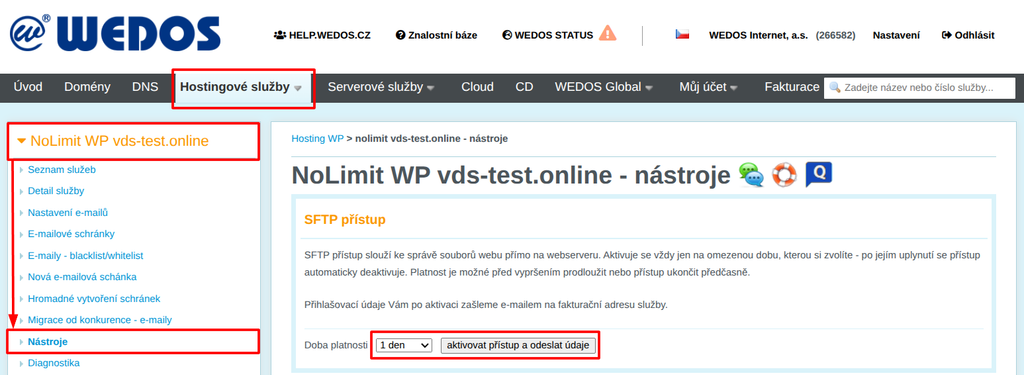
The e-mail with access details (SFTP server, username, password) is sent by the system to the service's billing e-mail.
Deactivating or Extending an SFTP Account
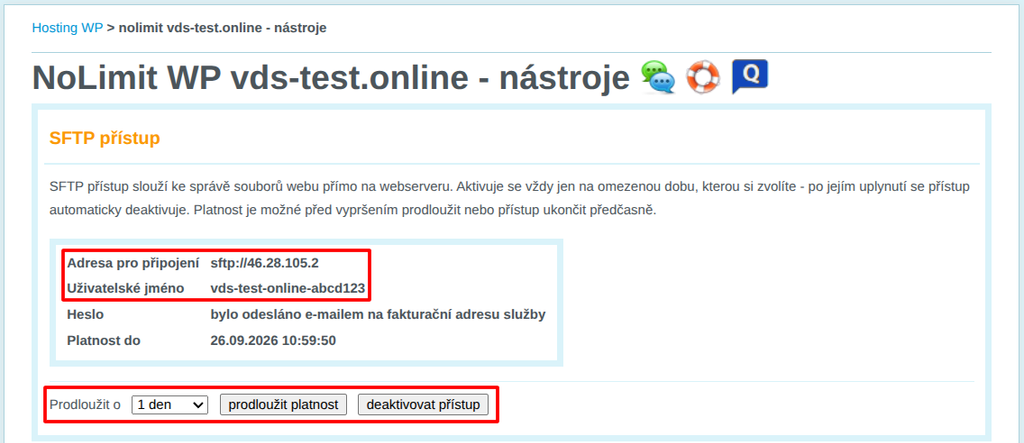
If you need to deactivate or extend an SFTP account, go to the SFTP management interface according to the instructions in the chapter Activating and Deactivating SFTP. In the SFTP access section you will find controls:
- Select the time period and the Extend validity button to extend functionality.
- The Deactivate access button to immediately cancel the SFTP account.
Password Recovery
You can also find the server address and login names in the customer administration. We send the password only by e-mail. If you have lost the password, deactivate the access and activate it again. The system will send an e-mail with a new username and password.
Frequently Asked Questions
I did not receive the e-mail with the login details, what should I do?
Check which billing e-mail is set for the service. If it is correct, check the spam folder. If you still cannot find the e-mail with the details there, try deactivating and reactivating the account. If all else fails, contact support. Include the service name.
WebFTP shows an error when I try to log in, even though I enter port 22. What am I doing wrong?
WebFTP does not support SFTP. Use another FTP client, for example FileZilla ⧉.