
In this article, you will learn:
- What maintenance mode with full management is and how to activate it
- How the maintenance mode interface works
- Frequently asked questions
Maintenance mode with full management
Maintenance mode with full management is used to solve WordPress issues and repair a website that has stopped working. It always lasts no longer than 1 hour. After the limit expires or after manual deactivation, the system automatically:
- deactivates maintenance mode in the administration and on the server;
- cleans up the used files and items in the database.
You activate maintenance mode using the following steps:
- Log in to the customer administration ⧉.
- In the top menu, click Hosting services.
- Select the Hosting WP service for which you want to enable maintenance mode. The service name is displayed in the header of the left menu.
- In the left menu, click Tools.
- In the Maintenance mode with full management section, click the activate button.
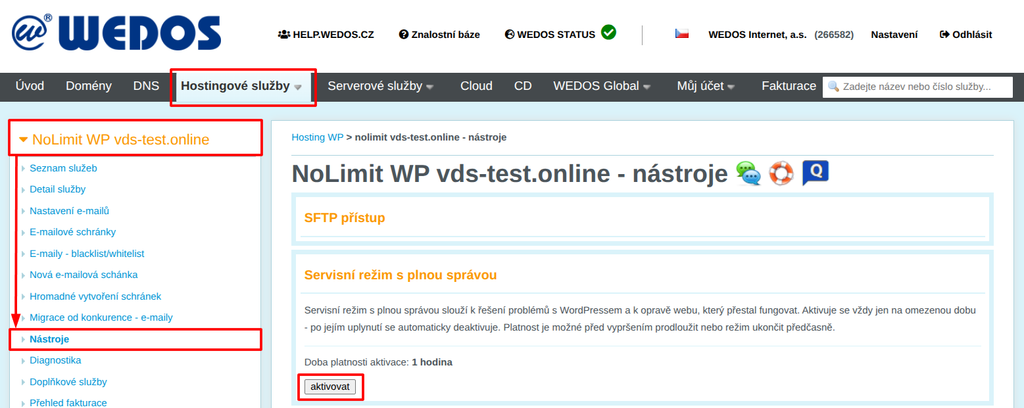
The system activates maintenance mode within 5 minutes. During this time, you cannot perform other actions in Tools.
Access to the maintenance interface
If the login does not appear 1-5 minutes after activating maintenance mode, refresh the Tools page manually.
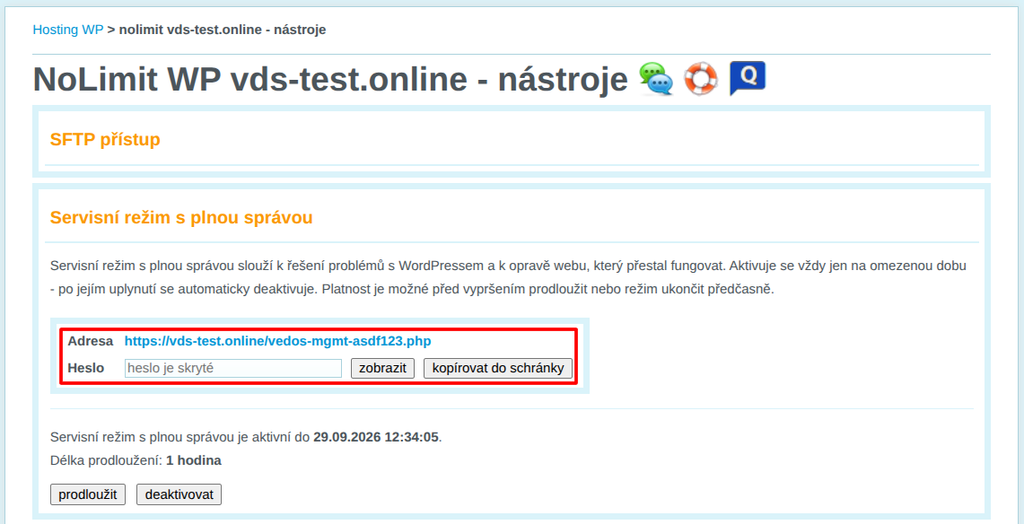
After activation, the system generates an address and password for access to the maintenance interface. The address is different every time; the system creates it randomly. We do not send the details by e-mail; you will find them only in the administration in the Maintenance mode with full management section.
- Address – the link opens the maintenance interface.
- Password – to obtain the password, click show or copy to clipboard.
Extending and deactivating maintenance mode
After activation, the Maintenance mode with full management section shows the date and time until which the mode is active, and the length of one extension (1 hour). Below it, you will find two buttons:
- extend – the system extends the maintenance mode validity by 1 hour from the original expiration;
- deactivate – the system immediately ends maintenance mode and cleans up the used files and items in the database.
Maintenance mode interface
Open the maintenance mode address, enter the password, and click the Log in button. A page will be displayed containing the following information and controls:
- Auto-login: This button in the top bar lets you log in to the WP interface as a temporary administrator. You will also find the relevant access details here for possible sending to an external administrator.
- Adminer: This button launches the Adminer application for database management and automatically logs in the user.
- Auto-cleanup: In the top right corner, you will find a timer for when the automatic cleanup starts. You can reset the timer by any action, including refreshing the page. This value does not affect deactivation of the interface in the system and customer administration.
- Website status: At the bottom of the navigation column, you will find a quick assessment of the status of certain website components – the
wp-config.phpfile, database access and connection, the .htaccess file, WP Debug tools, and the Adminer maintenance interface. - Log file: Below the website status, you will find a link to download the log of performed actions.
Through the navigation column, you can access the following sections of the maintenance interface:
- Main page (Home)
- Plugins
- WP Users
- Website URL
- Adminer
- Configuration
- WP Debug
- Cleanup
Home page
The home page is used for quick login to WordPress and for opening the Adminer database tool.
For quick login, maintenance mode creates a separate account with administrator rights valid only for the time when maintenance mode is active.
Plugins
This page is mainly used to disable the plugin causing problems with the website. It displays a list of plugins installed in WordPress. The table contains the following columns:
- Status – a green dot marks an active plugin, a red dot marks a disabled one.
- Plugin – the folder name and main file of the plugin, for example wgpwpp/wgpwpp.php.
- Action – the Disable button deactivates the plugin, the Enable button activates it.
The system changes the plugin status immediately after clicking the button.
WP Users
This page is used to manage WordPress users. You can create a new user, change an existing user's password, or delete a user. It is especially useful when you cannot log in to the administration with your own account.
In the Add new user section, you can create a new WordPress user. The form contains these fields:
- Login – username (required).
- E-mail – user’s e-mail address (required).
- Displayed name – the name displayed by WordPress.
- Password – if you leave the field empty, the system generates the password automatically.
- Role – user role, default Subscriber.
After entering the required settings, create the user by clicking the Add user button.
In the User list section, you can remove accounts, such as inactive administrators and accounts created during a website compromise. The table shows all WordPress users in these columns:
- ID, Login, Name, E-mail – basic user information.
- Role – user role, for example administrator.
- Registered – registration date.
- New password – enter a new password and click Set.
- Delete – the button immediately removes the user without confirmation. Their posts will remain in WordPress without an author.
The temporary maintenance mode account is marked in the list with the label VEDOS.
Website URL
This page is used to check and change the WordPress address. It is especially useful when the website does not work after an address change or redirects to the old domain.
The Current URL configuration overview table compares the WordPress address (siteurl) and the website address (home) according to individual sources:
- Database (wp_options) – addresses stored in the database.
- wp-config.php – addresses set by the WP_SITEURL and WP_HOME constants. If the file does not define them, the table shows "not defined".
- .htaccess (RewriteBase) – status of the WordPress block in the .htaccess file.
- Effective URL – the addresses that WordPress actually uses.
The Change WordPress address form contains these fields:
- WordPress Address (siteurl) – the address where WordPress runs.
- Site Address (home) – the address visitors use to open the website.
- Copy – the button copies the value from the WordPress Address field to the Site Address field.
In the What to update section, choose where the system writes the new address:
- Database – the system overwrites the siteurl and home records in the wp_options table.
- wp-config.php – the system overwrites the WP_SITEURL and WP_HOME constants. If the file does not define them, the option is inactive and the system does not change anything.
- .htaccess – the system adjusts RewriteBase and RewriteRule in the WordPress block. You only need this option when changing a subdirectory.
Save the changes with the Save new URL button.
Adminer
This page is used to manage the website database through the Adminer tool. You will find these elements here:
Deployment status
- Adminer is deployed as – the file name on which Adminer runs. The system generated it randomly.
- DB host, database, user – information about the database to which Adminer connects.
- Open Adminer (auto-login) – the button opens Adminer and logs you in to the database without entering details.
- Direct link – the address where Adminer runs.
Deployment management
- Redeploy wrapper – the button redeploys Adminer.
- Delete Adminer – the button removes Adminer from the server.
Cleanup
This page is used to manually end maintenance mode. After clicking Perform cleanup, the system irreversibly:
- deletes the temporary WP account (if it exists);
- deletes all log files vedos-log-*.txt;
- deletes Adminer;
- deletes the maintenance mode script.
After cleanup, you will no longer be able to enter the maintenance interface. If you want to use maintenance mode again, activate it in the administration.
Frequently asked questions
What if maintenance mode turns off before I finish the repair?
Before it expires, click extend in the administration. The system will extend maintenance mode by 1 hour from the original expiration.
Where can I find the address and password for maintenance mode?
We do not send the address or password by e-mail. You will find them after activation in the administration in the Maintenance mode with full management section. The address is different every time because the system generates it randomly.