
This guide addresses website problems on the Webhosting service (including WMS).
- If you are dealing with a domain or DNS problem, follow the guide Domains – Troubleshooting or DNS – Troubleshooting.
- If you are dealing with an FTP connection problem, follow the guide FTP – Troubleshooting.
- If your emails are not working, follow the guide Emails – Troubleshooting.
- If you use the WEDOS Protection service (find out by website hosting diagnostics according to this guide) and the website does not behave correctly, read Protection – Website Troubleshooting ⧉.
In this article you will learn:
Website problem diagnostics
Most common errors are well described, and the easiest way to find a usable troubleshooting guide is to enter the error message or a brief description of the error together with the provider name (or the content management system name) into a search engine (Google, …), for example Error 500 Prestashop WEDOS.

If you cannot find a procedure, try the following steps:
- Run the domain diagnostics according to the guide Domains – Diagnostics. Here you will find out whether the services are active/inactive, or whether they are even operated by VEDOS.
- Check the Status service at wedos.status.online ⧉. You can find the web server designation in the diagnostic output from the previous step.
- Go through the chapter Website troubleshooting step by step.

More advanced tools suitable for website problem diagnostics include:
- Logging. It allows you to locate specific errors (Errorlog) and possibly their relation to the number of page accesses (Accesslog). Once a month, you get Webhosting logging for 24 hours free of charge. The guide can be found in the article Webhosting – Logging.
- Browser developer tools. These are especially useful for checking non-working parts of pages (Network) and scripts (Console). The guide can be found in your browser manual.
Website troubleshooting
Website problems can arise in different places:
- At the domain or DNS level: This usually includes domain expiration or another cause of DNS server shutdown, alternatively a problematic change to DNS records.
- In the Webhosting settings: Some service parameters may conflict with the application you run on the hosting.
- In the directory structure or files: These problems occur mainly due to improper FTP intervention, and less often when uploading content in other ways.
- In the content management system or application: These problems are very varied – every application, template, plugin, or their combination can cause an error. VEDOS provides guides (or support) only for the most common of these problems.
- As a result of compromise: If your website has malware, or an attacker deleted or modified data, we can arrange a backup if the problem is detected in time. We do not handle virus removal from websites ourselves; please seek help from a specialist.
Domain and DNS
Domain, DNS, and Webhosting are different services. Before troubleshooting, always make sure you know the current provider of these services.
Domain and DNS errors occur almost exclusively due to changes to these services, whether manual (editing DNS server or record data) or automatic (domain suspension by the registry, automatic settings in administration).
The most common problems with a domain or DNS include:
- Inactive domain either expired or has not yet been created. If possible, pay for the service; within 6–48 hours after successful payment is received in our system, it should work again. If you do not see a previously active domain in administration, it is either in another customer account (or with another registrar), or the system deleted it after a certain expiration period. More information can be found in the article Domains – Troubleshooting.
- Incorrect DNS servers. If you have recently changed the domain DNS servers (NSSET), check that you have the correct A or AAAA records with the new provider. Also allow for a longer DNS propagation time, which usually takes 6–48 hours.
- Incorrect or missing A or AAAA records. For the domain to work, it must have at least one DNS record of type A or AAAA. If the web hosting provider does not support that record type (IPv4 or IPv6 address), make sure you have deleted the old records of this type so that visitors are not routed to the old address. More information can be found in the article DNS – Troubleshooting.
Some actions, such as setting up a new hosting, renaming, adding an alias, or deploying WEDOS Protection ⧉, can automatically change A and AAAA DNS records. When performing these actions, pay close attention to the automatic DNS settings options.
Webhosting settings
Errors in webhosting settings most often appear when its parameters are changed, or when the application running on the hosting is updated.
The most common problems with webhosting settings include:
- Disabled or limited web server is easy to recognize – by the error screen with the message Webhosting is turned off. The web server is usually disabled after Webhosting expiration.

Webhosting expired for more than 30 days (7 days for a terminated Webhosting) is completely deleted from the system. You can restore it by ordering a new service and uploading your own backup. We cannot restore a backup of a deleted hosting from our side.
- Low performance usually appears as Error 503 – Service Temporarily Unavailable, in which the allocated capacity is exhausted and the server cannot process additional application requests.
- A problem with the PHP version or parameters is usually indicated directly by error messages, or you will encounter it while resolving application and plugin errors with their support. Some PHP parameters also depend on the webhosting plan ⧉; others, including the PHP version, can be set according to the guide Webhosting – PHP configuration. You can verify the availability of the PHP functions required by your application in the output of PHPinfo (8.0) ⧉.
- Non-working HTTPS usually displays an error message about an insecure connection, or the message Not Found on Accelerator. In both cases, check the HTTPS settings of the Webhosting manually and fix any errors. Repeat the HTTPS test at least half an hour after the administration shows the certificate as active. If the problems persist, contact customer support ⧉.

Directory structure and files
Errors in the directory structure and files usually occur due to improper FTP intervention, or as a result of a compromised website.
The most common errors in directory structure and files include:
- Error 403 – Forbidden, when access to a directory is blocked, or the display of the index.html or index.php file.
- Error 404 – Not Found, meaning file not found, usually because it has been renamed or deleted.
- Error 500 – Internal Server Error, which is usually caused by invalid commands in the .htaccess file, or by a conflict involving subdomains on the webhosting.
- Violation of the directory structure by uploading the website somewhere other than the www folder (usually to the root directory) or directories for alias domains and subdomains. Websites placed in the domains and subdom subdirectories also require the use of the default .htaccess. Less obvious directory structure errors include problems with file uploads and token storage. Both are caused by a missing folder (tmp or session) in the root directory. In all these cases, restore the basic Webhosting directory structure according to the guide Webhosting – Reset FTP.
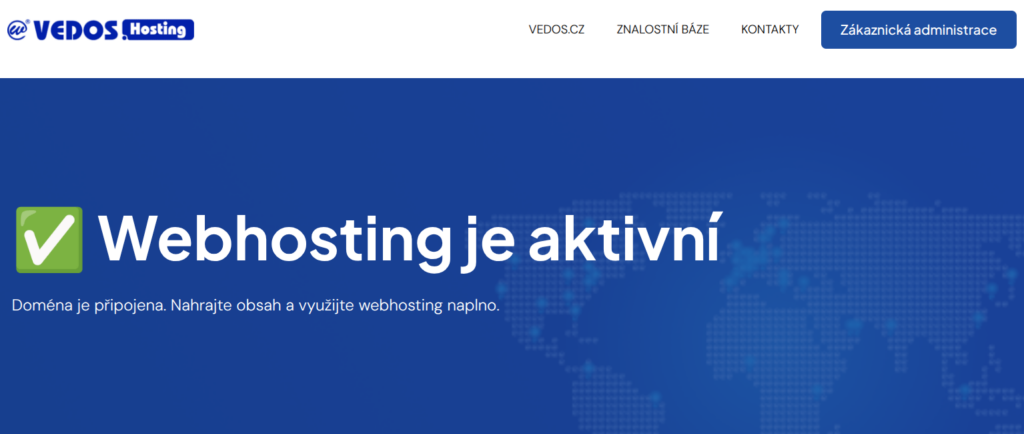
- Webhosting is active – this page is displayed by the original index.html file located in the www folder. Common reasons why this page is displayed instead of the normal website content are:
- Conflict with the index.php file. If you have both files in one folder, the server will preferentially run the one with the html extension.
- Changing the .htaccess file. If the configured routing in the directory structure stops working due to website compromise or incorrect handling of the settings (for example, restoring the default .htaccess), this default page may appear.
Content management systems and applications
VEDOS is not responsible in any way for errors in content management systems or applications running on Webhosting, including applications installed by our installer, or migrated by the automatic migration tool.
If you request assistance from VEDOS support, set up temporary FTP access for at least 1-2 business days and expect that such intervention may take several days, or may be rejected.
You can find solutions to problems that the community encounters most often in the Help community guides directory ⧉. If you do not see a solution to your problem there, you can try to ask a question on the forum ⧉.
If you know which part of the system or application is causing the problem (for example, you can see the name of the error template or plugin in the file path), contact their support directly.
Compromised website
A compromised website can manifest in different ways. The most common are:
- Changing or deleting website content
- Unwanted redirects
- Sending spam
From our side, we address a compromised website only by limiting its performance or taking it offline; in the case of spam, by blocking the mail() function. If no healthy backup of files and databases is available, you must resolve the matter yourself or through an external specialist.
Frequently asked questions
Why can’t I see any changes made on my website?
If error messages or old content remain on the website even after you have made fixes, make sure to clear the cache:
- Browser cache using the keyboard shortcut Ctrl+Shift+R, or according to the browser’s manual.
- WEDOS.protection system, if your website uses it (find out by website hosting diagnostics according to this guide).
What should I do if none of this solved my problem?
Activate temporary FTP access for support and write via the contact form ⧉. Provide the website name and a detailed description of the problem, including screenshots ⧉ of error messages or unwanted behavior. If the solution takes longer, be patient and keep the temporary FTP access active. If you decide to solve the problem on your own during this time, terminate the FTP access and inform us.
How long does it take for VEDOS support to resolve my problem?
Guides for solving known problems are usually sent within 1 hour. If intervention by the CMS/WebSite department or a technician is required, the resolution may take several days – it always depends on the complexity of the solution and the workload of the given department.