
This guide covers switching from one VEDOS hosting type to another (for example, from Webhosting to Mailhosting). If you need to change the service plan, follow the guide Services – Change of plan and billing period.
In this guide, you will learn:
- General procedure for changing the hosting type
- How to terminate the original hosting and release the domain for the new one
- How to move a website
- How to move emails
- Solutions to common problems
- Frequently asked questions
Change of hosting type
Changing the hosting type does not automatically transfer data between services. It only releases the service name for a different hosting type.
You usually change the hosting type when optimizing the needs of your website and email services. The most common changes include:
- Mailhosting to Webhosting or Hosting WP. If you have emails with VEDOS and now want to run your own website as well, you switch to Webhosting or Hosting WP, which includes email services by default. Exceptions are the web hosting services LowCost WP and Website SODEW, which do not include email services.
- Webhosting to Mailhosting. If you run a website with another provider and with VEDOS you only have emails, changing the hosting type to Mailhosting can save you a significant amount.
When changing, you usually follow these steps:
- Prepare the new website on a subdomain (optional step): Especially when moving to a completely new website, we recommend preparing and testing everything first on a subdomain, for example
novyweb.vasedomena.tld. Hostings created with the subdomain name are not in conflict with services using the same main domain. At the same time, you have a development and testing environment at hand without affecting the operation of the original website on the main domain. - Release the domain from the original hosting: Once you are ready to switch from one service to another, you need to release the domain from the original hosting. Only then can you order a new service for this domain, or rename a test service to it.
- Move the website or emails: If you did not move the existing content during the preparation step, you perform the transfer after the service is created.
Releasing the domain from the original hosting
VEDOS hosting services tied to a specific domain or subdomain are incompatible with one another. If you want to create hosting for a domain that another hosting already uses as its name or alias, you must first change or completely remove that name. You can do this in the following ways:
- By terminating (letting run out) the hosting service
- By renaming the hosting
- By removing the Webhosting alias
Termination of hosting
Terminating the hosting is the simplest way to release the domain from the original hosting.
By submitting a termination request, you set the service to run out. The service expiration date does not change; the system simply stops trying to renew it. The time you have to transfer data and emails is therefore determined by this service’s expiration date.
Proceed with the following steps:
- Log in to the customer administration ⧉.
- In the navigation bar, select the type of service you want to terminate.
- Select the specific service from the list.
- In the left menu, click Termination/letting the service run out.
- Select the Termination type and also check the box release the domain for another service.
- If you want to move existing emails to the new service, also check keep working email services for migration to another service.
- State the reason for termination and click the Submit termination button.
Terminate/let the service run out:

Renaming the hosting
Releasing the domain name by renaming is useful in cases when you do not want to terminate the service directly — you have another use for it, or you need more time to move the website and emails to the new service.
If you rename the service from mojedomena.tld for example to staryweb.mojedomena.tld, you can create a new service for the original name, or rename another service to it (for example a service on a test subdomain). Follow the renaming guides for:
Removing the Webhosting alias
The Webhosting service can have multiple domain names that you set through so-called aliases. More information and the procedure for removing aliases can be found in the guide Webhosting – Aliases.
Website transfer
If you want to move the original website to the new service, follow the instructions for the target service:
- Webhosting: The Webhosting service currently does not support any automated transfers from other VEDOS services. To switch from Hosting WP, you can use any migration plugin; pages (but not the editing interface) from WebSite 1.0 to Webhosting can be transferred by customer support upon request.
- Hosting WP: The Hosting WP service supports transfer from WordPress on Webhosting using the VEDOS migration plugin. More information can be found in the guide Hosting WP – Switching from another service.
Email transfer
If you are switching between hosting services with a domain name (Webhosting, Mailhosting, ...), you can leave the emails on the mail server under the original domain. If you then create a service for this domain that supports emails, the system will automatically pair them.
If instead of creating a new service you want to add the domain as an alias to an existing Webhosting, avoid keeping emails on the original domain. A blocked domain on the mail server will prevent adding the alias. Migrate the services manually according to the chapter Additional email migration.
The shortened procedure for changing hosting and moving emails is:
- Terminate the original service according to the guide in the chapter Termination of hosting and check the boxes release the domain for another service and keep working email services for migration to another service.
- Before the original service expires, order a service of the new type with the original domain in the same customer account.
Keeping existing emails
If you check keep working email services for migration to another service during termination of the original service, the system will make the following changes:
- It will release the domain name of the original hosting service, but keep the domain on the mail server. Emails of the terminated service will therefore remain functional until its expiration.
- If a new hosting service with the same domain name is created in the same customer account before the original service expires, the system will automatically set for that service:
- The plan or add-ons so that it has the same email storage space as the original service.
- Connection to the original email services, if they are still active.

If you therefore order the new service before the original service expires, emails will work without any outage or need for transfer.
Additional email migration
All VEDOS services that support emails include the option of automatic mailbox migration. You will use this especially if for some reason (for example due to moving to an alias) you did not use the automatic transfer of emails within VEDOS hosting services.
To migrate successfully, prepare:
- IMAP server name: You can find it according to the guide Emails – SMTP, POP3, IMAP.
- Names and passwords of the source mailboxes: Enter the mailboxes including the service domain. If you removed the service name or renamed it, write the current service name after the at sign, for example
schranka@stary.domena.tld, orschranka@w123456. If you removed the Webhosting alias, enter the mailbox name with the main Webhosting domain.
You perform the automatic migration itself with these steps:
- Log in to the customer administration ⧉.
- In the navigation bar, select the type of service you want to move the emails to.
- Select the target service from the list.
- In the left menu, click Competition migration – emails.
- Fill in the prepared IMAP server and mailbox details.
- Confirm the notice about the behavior of migrated emails and click the Continue button.
Open the interface for automatic email migration to the service:
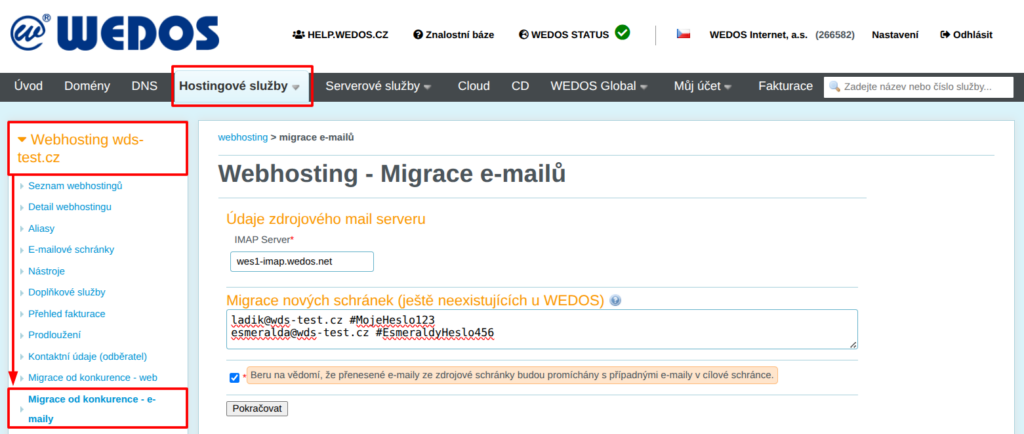
You can find the complete guide to email migration, including solutions to common problems, in the guide Emails – Automatic migration.
Common problems
Common errors when switching between Webhosting and WebSite services include:
- The order is blocked by another existing order with the same name
- The domain is in another customer account
- The new service order is significantly more expensive
- An error or the old website is displayed
Existing order with the same name
Problem: An error message is displayed: An order (service) for this domain already exists in the system.

Cause: The system records an existing service or an active service order with the given domain name (alias).
Solution: Make sure the renaming or removal of the alias of the original service has been completed correctly. If the original name remains assigned to the service, try the action again from another browser.
If an unpaid order is preventing the new service from being created, contact support ⧉ and ask for it to be canceled.
Domain in another customer account
Problem: An error is displayed: The domain is located in another customer account.

Cause: If you are creating a service for a domain registered with VEDOS, the service and the domain must be in the same customer account at least temporarily.
Solution: Move the domain at least temporarily into your own account using the authorization password or service transfer using login and ID.
Increased price of the new order
Problem: The price of the new hosting order is higher than expected according to the price list.
Cause: If, during termination of the service, you request keeping existing emails, the new order will be issued so that the resulting service has the same mailbox capacity. If you are switching from a NoLimit service with 10 GB for emails to Mailhosting Individual or LowCost hosting (with the default capacity of 5 GB), the system will request an increase even if you have far fewer emails or do not use them at all.
Solution: If you do not use email services, uncheck the request to keep existing emails during service termination, or cancel it before completing the new service order on the termination/letting run out page by button.

If you do use email services, but want the new service to be created with lower capacity, also cancel the transfer of email services and after creating the new service with the parameters you want, migrate the emails according to the chapter Additional email migration.
Non-functional or old website
Problem: The old website or an error message is displayed.
Cause: Website content is often cached in the browser. It may then display data from the original website even though the domain already points to another hosting.
Webhosting services have different A and AAAA DNS records. When renaming and creating services, you can let the DNS records be set automatically — if you reject the automatic setting change by unchecking the relevant box, you must later point the domain to the service manually.
Solution: If the original website is displayed, first try loading it without the browser cache using the keyboard shortcut Ctrl+Shift+R.
If an error is displayed, point the domain to the new service according to the guide Domains – Directing to services, or manually according to the guide DNS – Domain records. Automatic DNS directing works only if the domain has DNS records with us. Otherwise, you must set the DNS records manually according to the provider’s instructions. Service addresses can be found in the table of the same name in the Service detail.
Frequently asked questions
We still have quite a few days left until expiration on the original service; how can we use this period?
If you have no use for the original service that you released by changing the type, you can request a transfer of the proportional part of the unused period to the new service. When terminating such a service, state the name and type of the new service. If you need to end the service at a later date, for example so that you have enough time to move the data and mail, also state this date in the text.
We let the service run out, but it expired and we cannot finish the website or email transfer. Can you turn it back on for a few more days?
Customer support can temporarily enable the hosting service, for a maximum of 5 days after expiration. We cannot temporarily enable a service that has been expired for 6 or more days.
If we remove the domain from the original service to release the name for the new service, how will we access the website and emails on the original service?
You will not be able to access the website itself after removing the name, but the files and data on FTP and in databases will remain until the service is deleted. If you want to keep the old website available, for example on a subdomain, rename the hosting instead of terminating it.
Email mailboxes are available under the domain corresponding to the service name. So if the service name after termination is, for example, w123456, you will access mailbox schranka with the login schranka@w123456. This should work both for webmail ⧉ and for any mail client. However, no more emails will arrive to mailboxes of a service whose name has been removed — so do not delay migration and especially the creation of new mailboxes unnecessarily (during migration they are created automatically, and later emails can be moved into them).
The exception is the situation where you checked keeping the working email services during termination — in this case, emails continue to work on the original domain.